Customizing Units and Color Scales on Shared Maps - the NW Pacific Heat Dome
This lesson will show you how to use the custom gear options for your anomaly and normalized maps. These options are also available for most of the...
This lesson will show you how to use the custom gear options for your anomaly and normalized maps. These options are also available for most of the parameters, but since our anomaly and normalized maps primarily have a 2 tone color scale it makes the demonstration much easier. Suppose you are working on a series of maps to describe the weather from January 2026
850mb Temperature (C), Jan 15, 2026
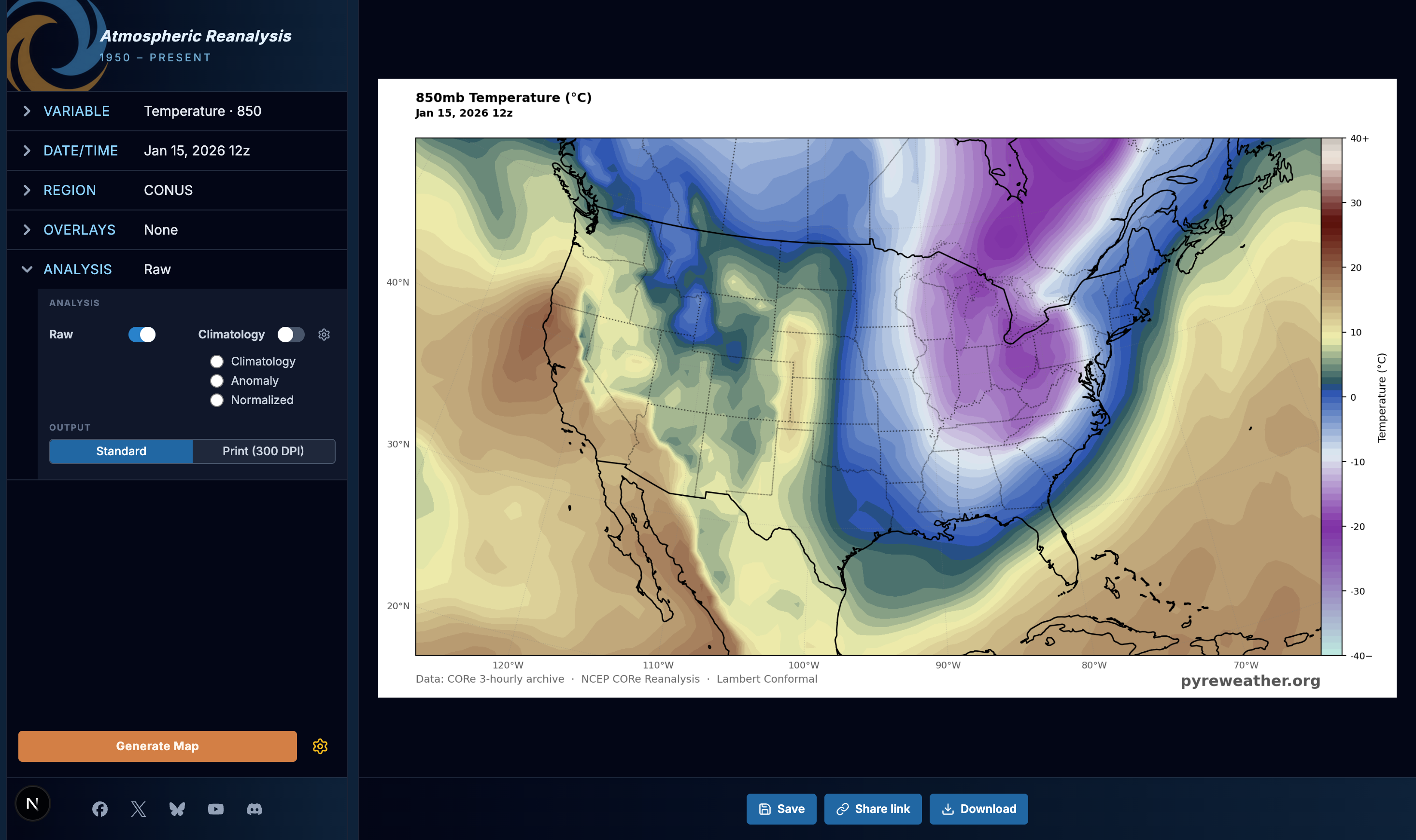
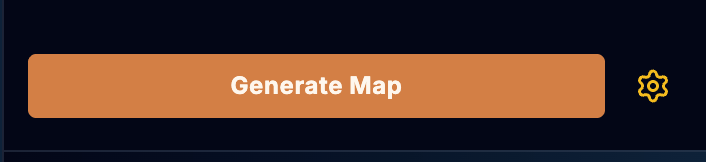
If you use the link I provided, you'll notice that the map scale is in Celsius, which is most common for upper level maps even in the US. But if you wanted to set your own standard units for all of your maps, all you have to do is open the settings gear next to the generate button, bottom left:
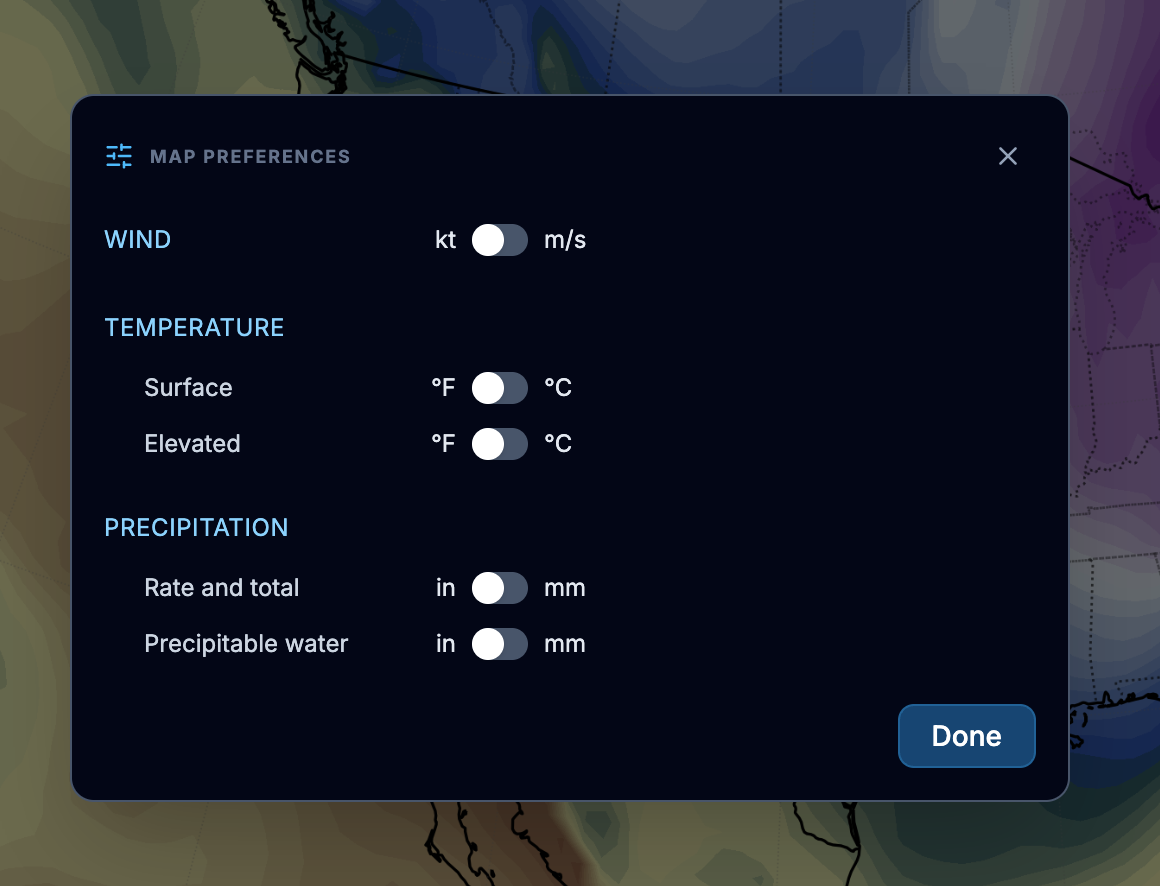
Clicking on that opens up a small settings panel, where for right now you can choose your default settings for temperature (C or F) as well as for moisture (inches or mm). I say for now because we'd love feedback on the usefulness and placement of this setting. Lets say for whatever reason you have selected Farenheit as your default temperature unit for upper air maps ("elevated"). When you click refresh in your map window the same map will show up with Farenheit units instead of Celsius.
850mb Temperature (F), Jan 15, 2026
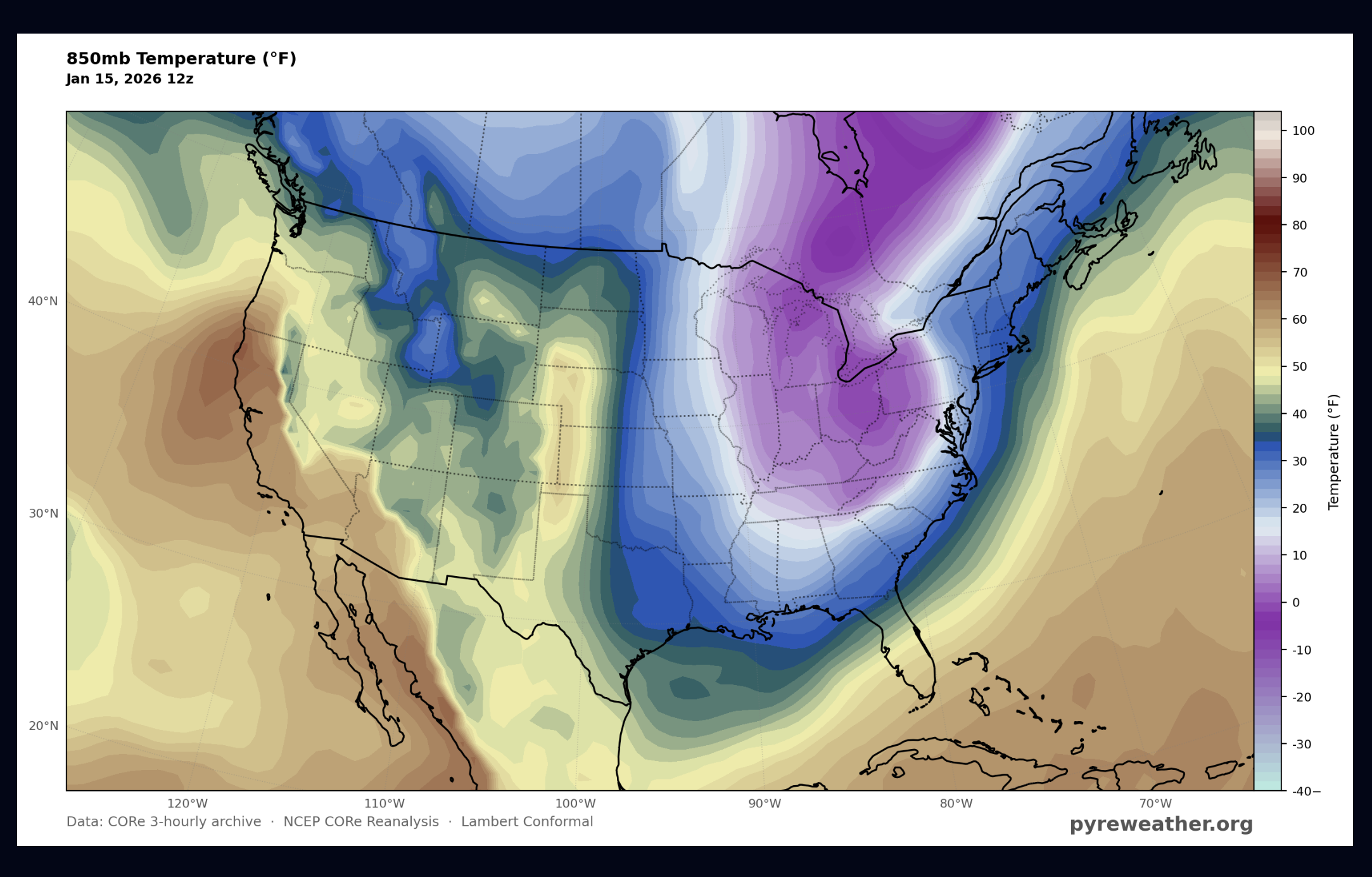
Now if you share that map with someone else either by copying the URL, or using the "Share" button, notice that it has a parameter at the end of the URL "&temp_unit=F". You could manually add this to any temperature map and it will override the settings only one time, when it first generates in the browser. After that if you click the generate button again, it will render with the units that you have set for your own account
I've gone back and forth on this option setting several times and I decided that this is the best of both worlds. Lets say you live anywhere else besides the US, and a colleague shares a map with you that has temperature tacked on as the units. For you to look at the same map that was sent to you it needs to be rendered with the same units. Click Generate on your screen and it is rendered in Celsius assuming that's what you have set. The first render happens automatically when you click the link, the map link that you clicked on is sent to the API, so you get what was in the original link.
Customizing the Color Scales
the color scale goes hand in hand with the unit settings. We store default scales for Celsius and Fahrenheit, so every map has the same scale. But sometimes you may find the feature you are interested in washed out or looking indistinct. this happens often on anomaly and precipitation maps, where the outliers may be 30% over a typical anomaly. For example if temperature anomalies are usually within +/- 20 F, on a day like Jan 15, 2026 that scale just isn't adequate.
For this section we are going to take a trip to the Pacific NW region of the US / Western Canada on June 21st, 2021 @ 00Z.
850mb Temperature (C), June 29, 2021 00Z
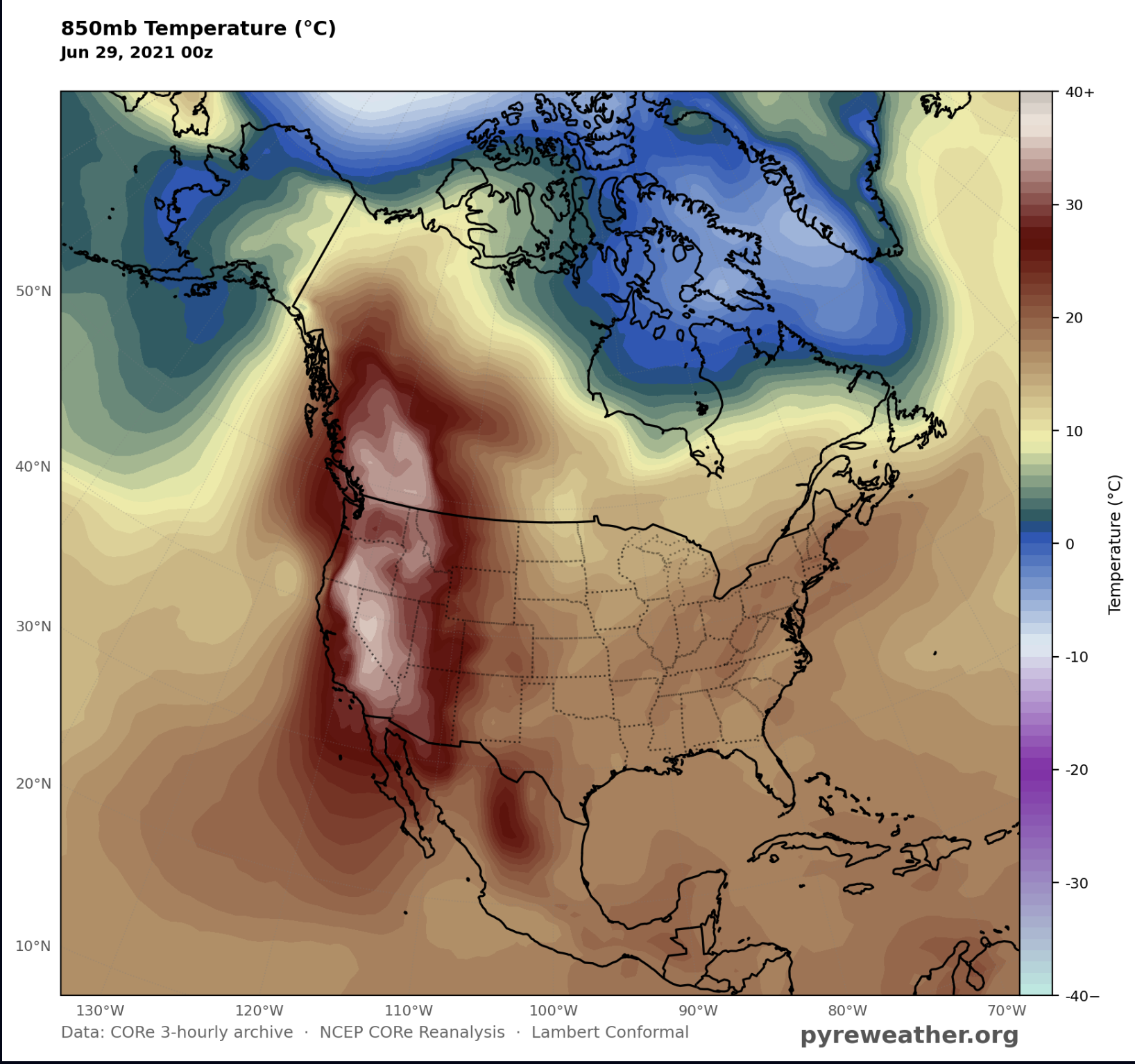
Boy this is a scorcher! Up to 40 degrees C West of the Rockies from Southern California up through British Columbia! Maybe it's normal for California to be warm this time of year, but what about British Columbia? You'll need a free account in order to follow this next part. So if you get an error just look for the "Sign In" link in the top right and click on the "Sign up" link. You'll need to verify your email before logging in. First, click on the Analysis menu in the left panel:
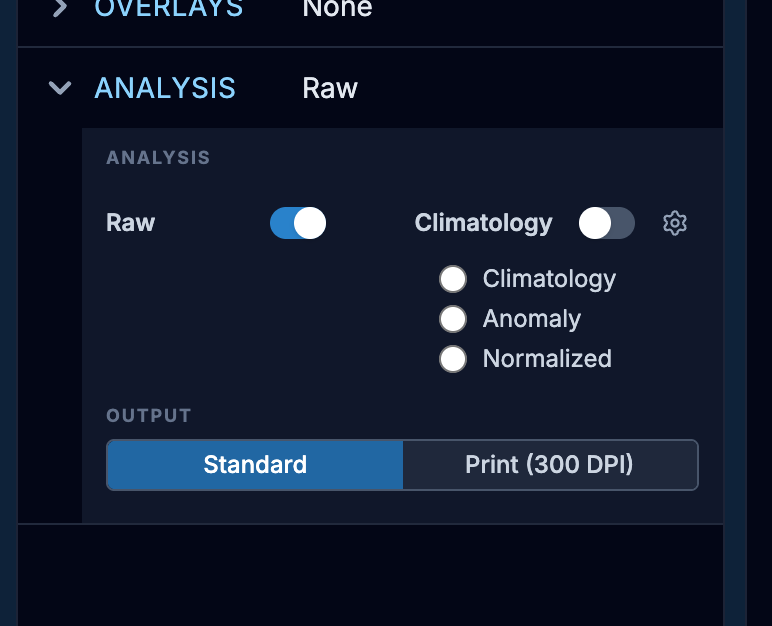
The click on the "Anomaly" button. You'll notice that the column switches from Raw to Climatology. This is because Anomalies and Normalized maps use the climatology to determine the variation from the mean.
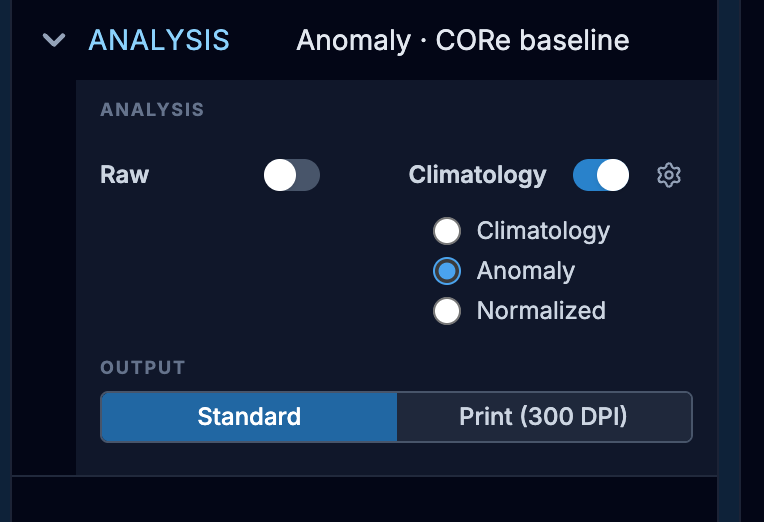
Then click Generate at the bottom of this panel
850mb Temperature Anomaly (C), June 29, 2021 00Z
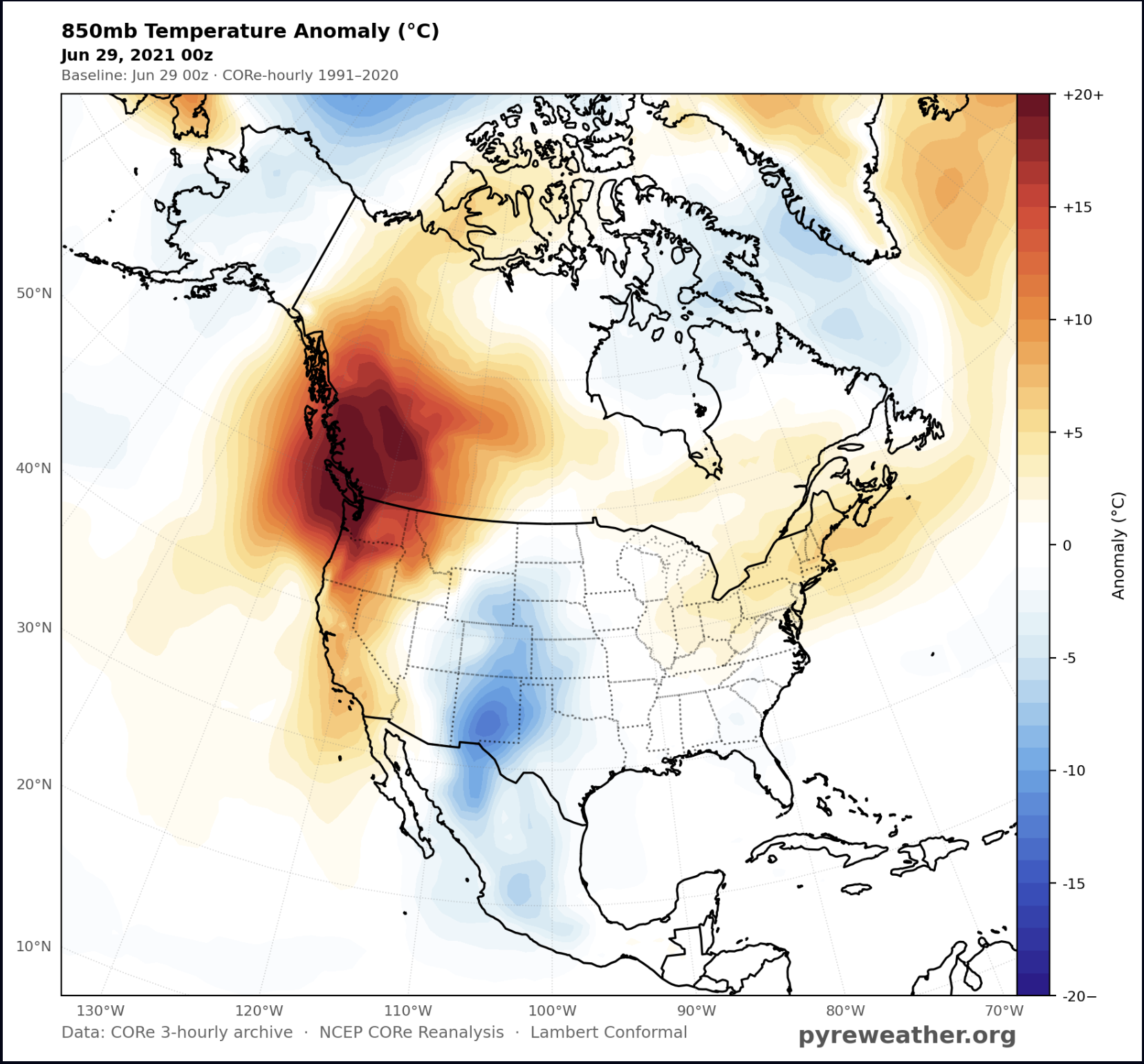
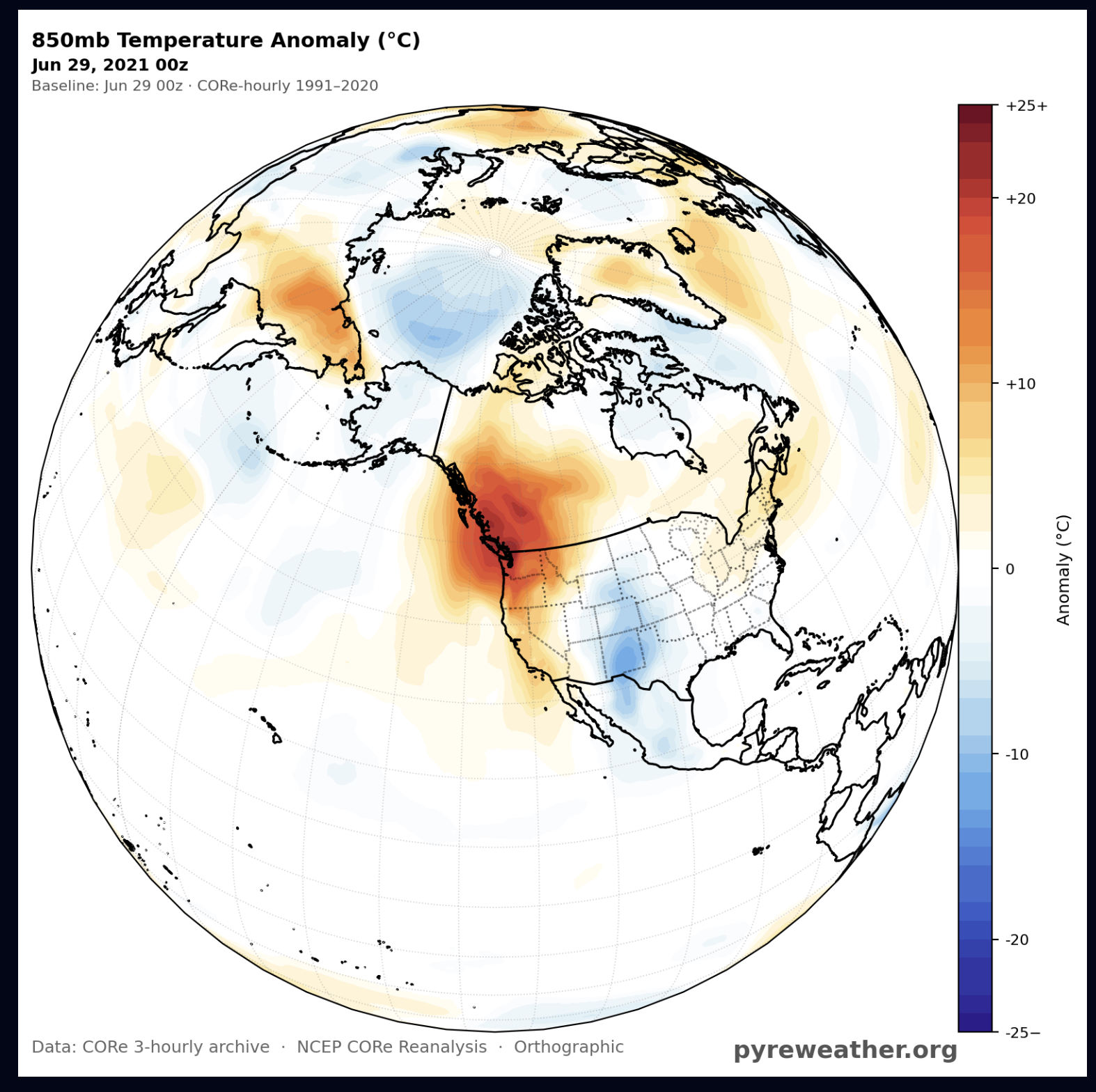
Notice how deeply saturated the area along the pacific coast of Canada is This map shows how many degrees warmer or cooler it was compared to normal. in the darkest red areas of the map it is 20 degrees Celsius or more warmer than normal. Southern California is a little warmer than normal but British Columbia is off the chart, literally! To see this with more clarity, we can customize the color scale values. Click on the Variable drop down, and look for the small gear to the right of Temperature. Click on that gear.
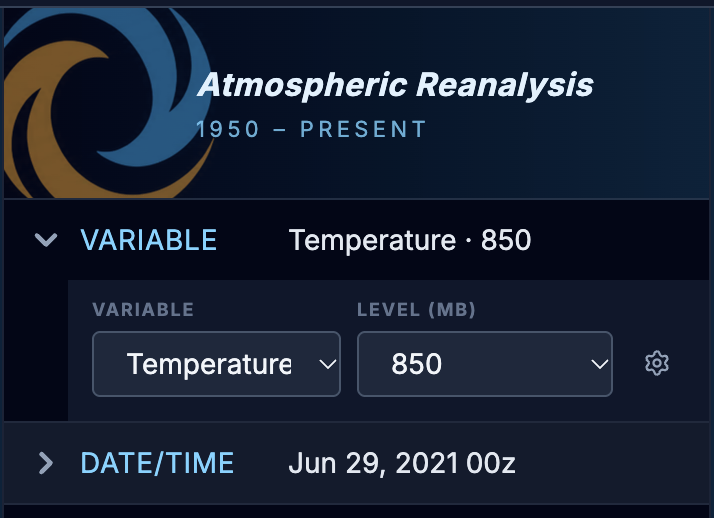
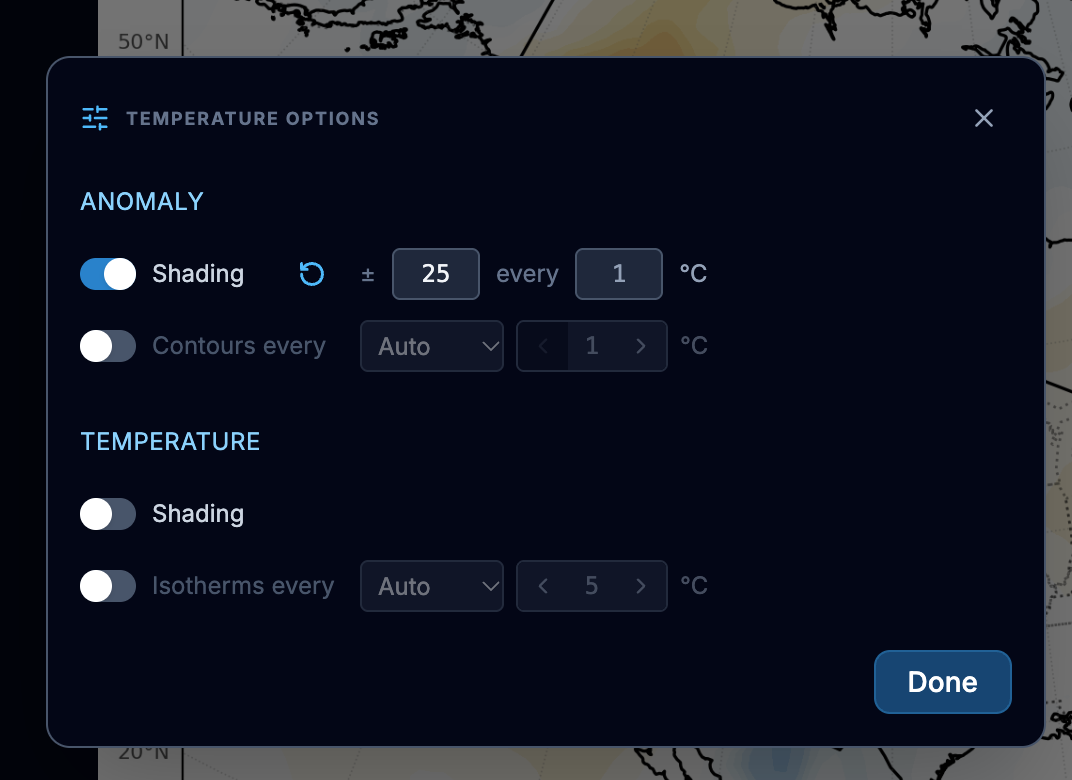
Since anomaly is selected already, you'll see two sectoins in the Temperature options. Anomaly has a shading and contour option, and so does Temperature. You if you don't change anything about these, you'll get the map I linked to above. In order to see more detail in the British Columbia region, click on the box to the right of Anomaly where you currently see "20". Change that to 30, then close the window and click generate again.
Now you can see much more detail in the region. The scale is expanded while the color range stays the same, so we are just stretching out the scale a little wider.
850mb Temperature Anomaly (C), June 29, 2021 00Z
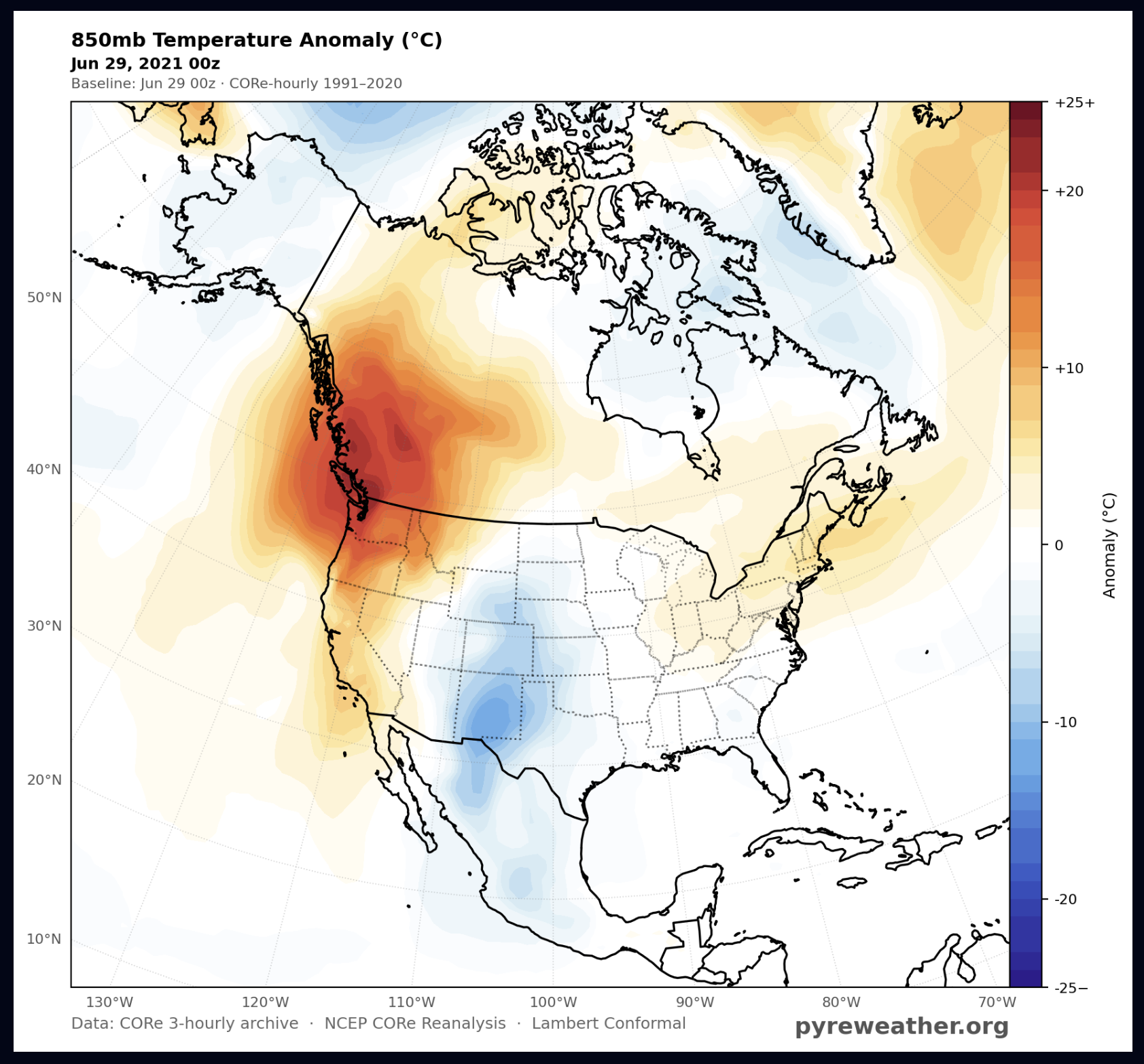
You may also notice that the cooler areas as well as the warm spot east of Greenland look a little more flat as a result. You can always customize your map region to focus in on the NE pacific.
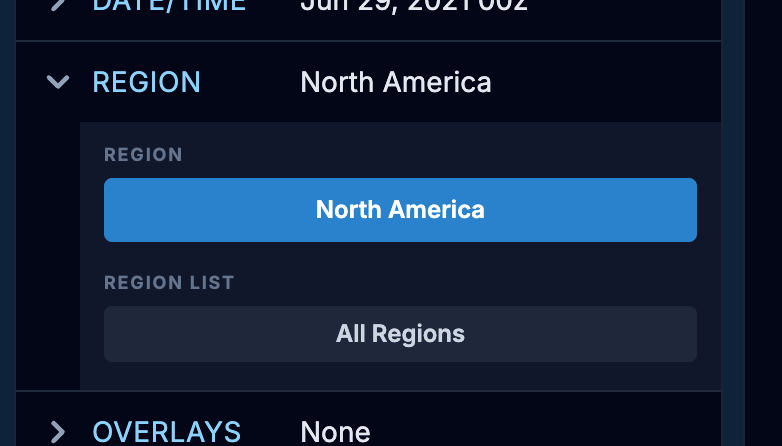
Leave all the map settings the same, but this time click on "All Regions", and then "Custom Region".
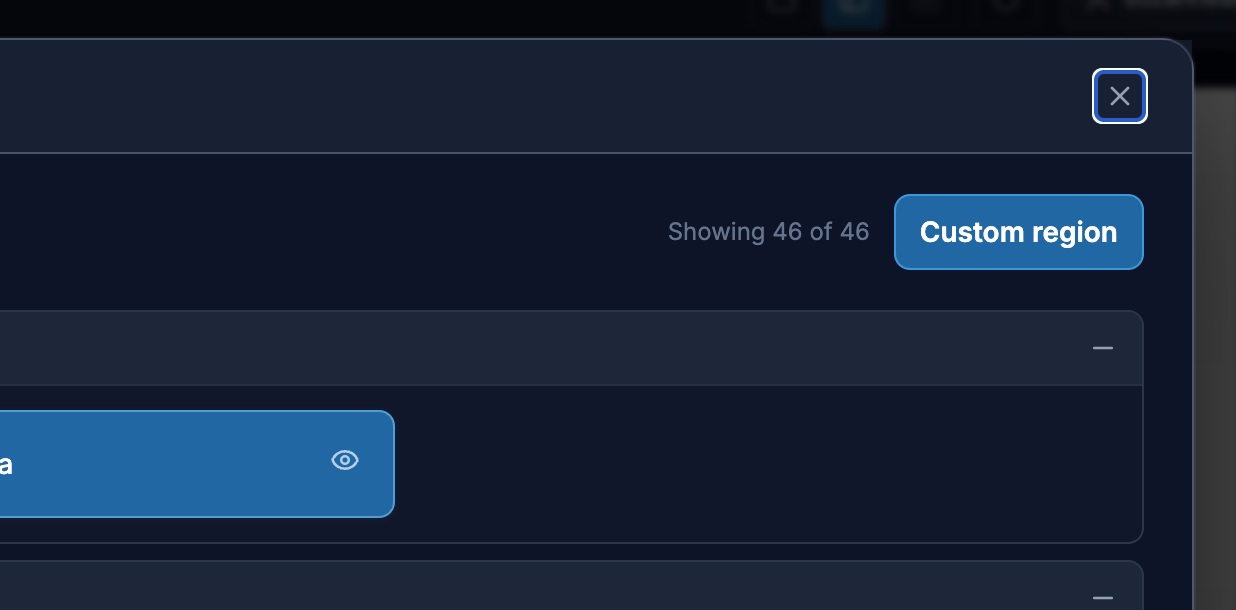
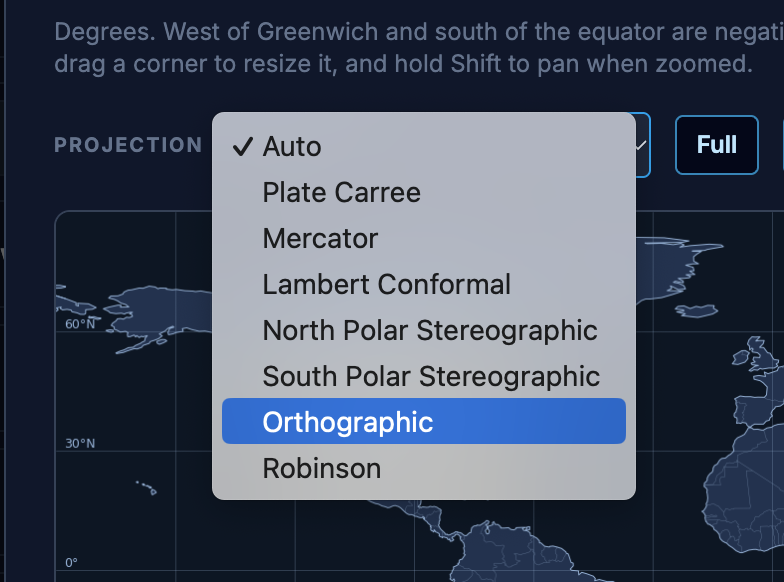
From there you'll see the fun custom region playground. Let's choose Orthographic from the Projection dropdown
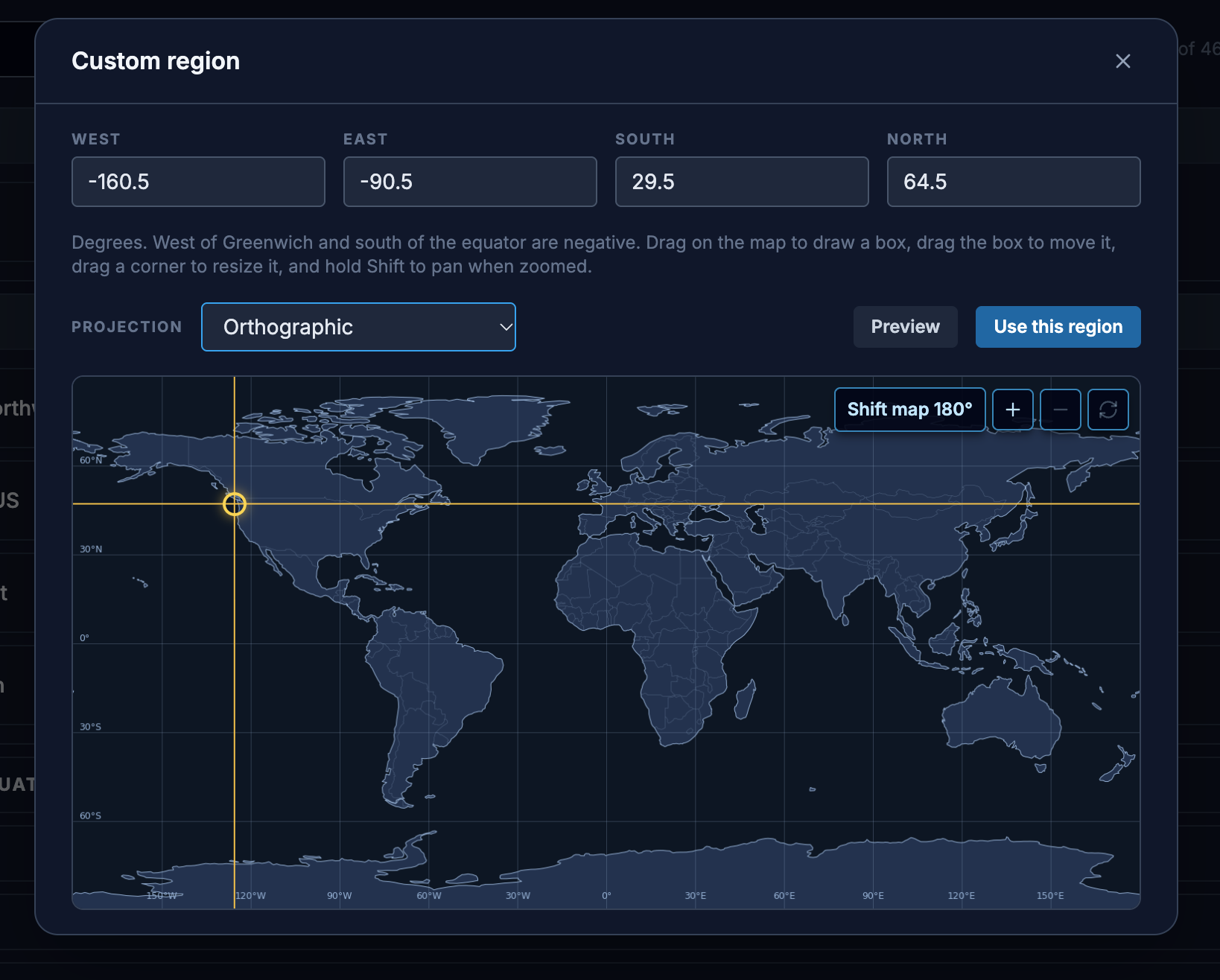
And then drag the crosshairs right over British Columbia. Click Preview if you want to see what it looks like, or just click Use this Region. Once you are back in the builder, click Generate.
And now you have a super cool globe projection with the area of interested centered in the middle as if we are hovering over it on a space station! You'll see the projection printed at the bottom of the map as well, so you can always recreate this map in the builder from the information printed on the map. You can also store not only the map but the builder configuration to your library so you can quickly retrieve it later.
850mb Temperature Anomaly (C), June 29, 2021 00Z
Side Quest - What are Anomalies?
So what are anomalies? An anomaly shows you how different the selected date is from the average of the past 30 years. 30 years may seem like a long time period, but if you consider that it is still only 30 data points, one or two wild years can skew the average. We use a 15 day window on the selected date for the Climatology period to determine the mean, and then calculate the anomaly and sigma for the selected date(s) in the current date setting. You can read more about this in our FAQ. There is no downside to using the 15 day window for variables that rarely change other than the time it takes to render. Every time we calculate a mean for a specific date and variable, we store that mean so we don't have to calculate it again. That means the more we use the anomaly features, the faster the features get!